Getting started
Installing the app (Android)
WeSpend is installed directly from an install link, not from the Play Store.
- Open the install link you received (it looks like
expo.dev/accounts/.../builds/...) on your phone, or scan the QR code on that page. - Download the APK and open it.
- Android may show a Google Play Protect warning saying the app was blocked. This happens because WeSpend can read bank SMS to auto-log expenses, which Play Protect flags on apps installed outside the Play Store. It is expected: temporarily disable Play Protect scanning (Play Store -> your profile picture -> Play Protect -> Settings -> turn off "Scan apps with Play Protect"), install WeSpend, then turn the setting back on.
- After installing, open the app once, leave it open for a minute, then close and reopen it. This lets it fetch the latest version of itself.
Updates are automatic
You never need to reinstall for normal updates. WeSpend downloads improvements in the background whenever you open it, and runs them on the next launch. A new install link is only needed for rare, bigger upgrades - you'll be told when that happens.
To see exactly what you're running, open Settings -> About WeSpend: the App updates card shows the active update, Check for updates now fetches and applies the latest immediately, and What's new lists what changed in each release.
Create or join a household
The first screen asks you to create a household or join one.
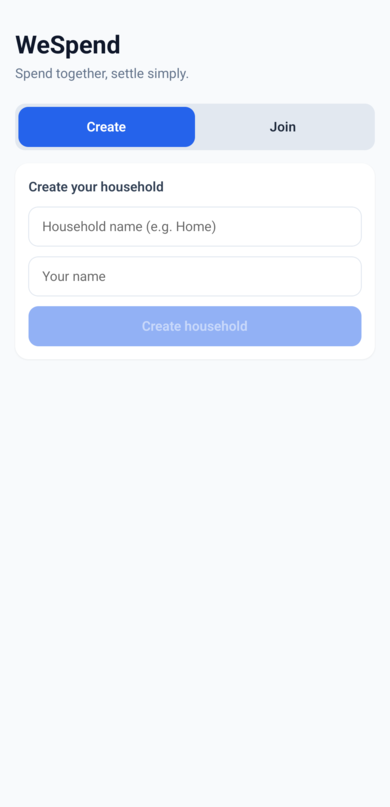
- Creating: enter a household name (e.g. "Home") and your own name. You become the household owner and finance manager (you can change the manager later).
- Joining: switch to the Join tab and enter the invite code your partner shares with you. You'll see the same expenses, budget, and settlement as everyone else in the household, live.
There is no email or password - your phone itself is your identity. That also means: don't uninstall the app or clear its data casually, or you'll need a fresh invite to get back in.
Next steps
Set a monthly budget under Settings (how) - the app calculates your daily and weekly limits from it automatically. Then log your first expense with the big + button on the home screen.