Household settings
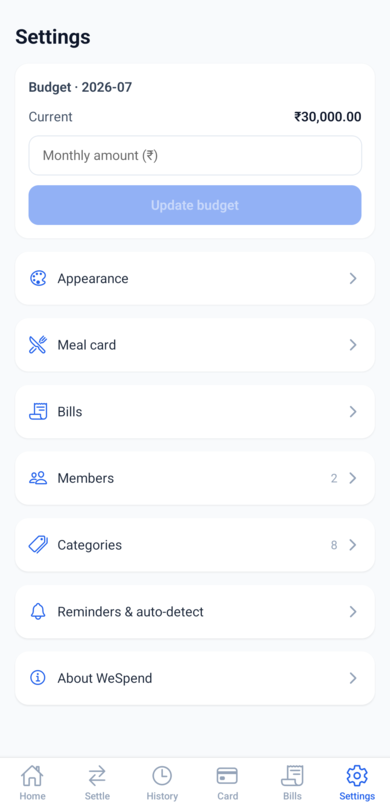
The Settings tab is where the household is configured. The monthly budget sits at the top; everything else is a menu of rows that each open their own screen. Most settings are shared - a budget or category changed by one member changes for everyone - while a few (theme, reminders, SMS) are per-phone. Each row notes which it is.
Monthly budget
Enter the total amount the household plans to spend this month and tap Set budget. From this one number the app derives everything else: the daily limit (budget / days in the month) and each week's limit. You can update it mid-month - past days keep their original limit, and remaining days are recalculated.
Each month needs its own budget. If the home screen says "No budget set for this month yet", this is where to fix it.
Appearance
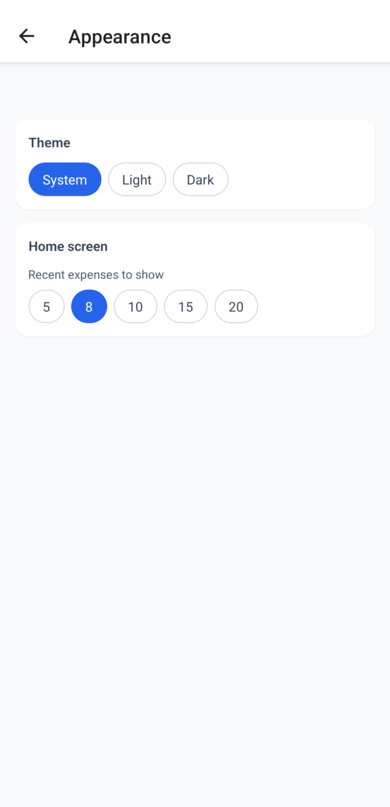
- Theme - System follows your phone's light/dark setting, or force Light or Dark. Per-phone.
- Recent expenses to show - how many entries the home screen's Recent list shows (5, 8, 10, 15, or 20). Per-phone.
Meal card
Opens the meal-card setup: turn it on, set the starting balance, top it up, and set a low-balance warning. See Meal card for the full picture.
Bills
Opens the optional Bills tracker's settings - enable or disable the Bills tab and manage its categories.
Members and invites
Everyone who spends household money should be a member, because expenses are attributed to a member and settlement depends on it.
- Add member - type a name and tap Add. This creates a "name-only" member: their spending can be logged by others, but they don't have the app yet.
- Rename - tap a member's name (or the pencil next to it) to edit it, then tap the green check.
- Invite - next to a name-only member, tap Invite to generate a code. Share it; when they enter it on their phone's Join screen, their app links to this household and the name-only badge disappears.
- Make manager - transfers the finance manager role (the person holding the shared pot) to that member.
- Archive - hides a member who's no longer around. Their past expenses are kept; they just stop appearing in pickers. You can't archive the finance manager - hand the role over first. Archived members collect under an Archived section with a Reactivate button to bring them back.
Categories
The chips here appear on the add-expense form. Add your own with the text box; long-press a chip to remove it. The app ships with sensible defaults (Groceries, Vegetables, Milk, Eating out, Transport, Utilities, Medical, Misc).
Reminders & auto-detect
- Activity notifications - a single per-phone switch that covers three things: a heads-up when a member adds, changes, or settles an expense on another device; the Sunday-evening reminder to settle the week; and a Monday follow-up for the finance manager if a week is still unsettled.
- Read bank/UPI SMS (Android) - lets WeSpend detect debit SMS and offer to log them. Turning it on asks for the SMS permission. Per-phone, off by default. Once on, a Scan today's SMS action appears below it to catch payments that arrived while the app was closed.
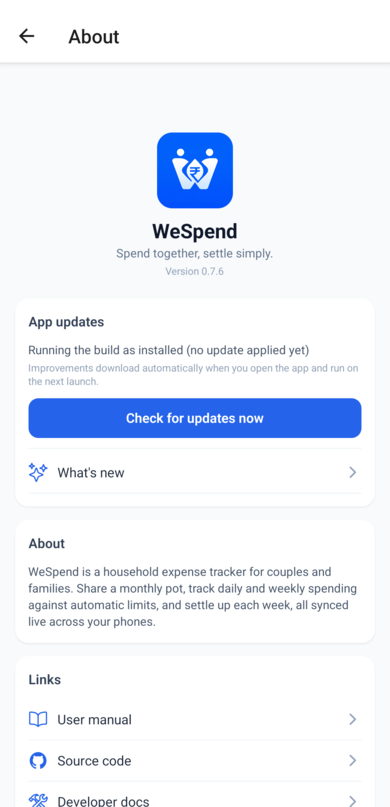
About WeSpend
The About page shows the app version and links - including this manual - plus the App updates card for checking for and applying updates, and What's new for the release notes.