History
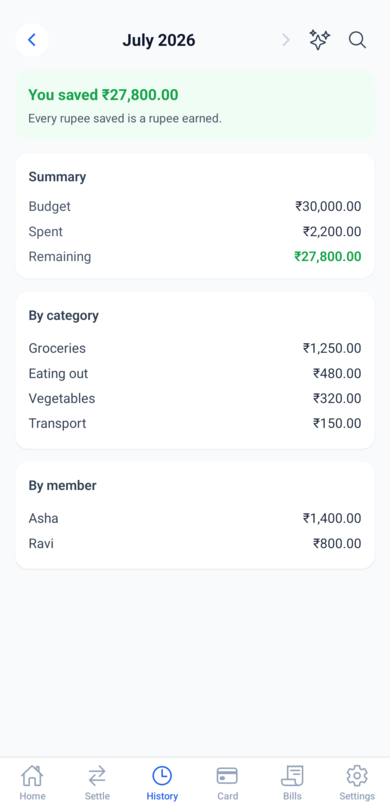
The History tab shows any month's full picture: how the month ended against its budget, with a summary and the complete expense list.
Switching months
Use the arrows at the top to move between months. The current month shows the running state; past months show how they finished. Two icons sit next to the month switcher: the sparkles open that month's recap, and the magnifying glass opens search.
Category and member breakdowns
Below the summary, History breaks the month down by category and by member, each with a bar showing its share of the total - a quick way to see where the money actually went.
The wrap-up banner
For months with a budget, a banner sums up the outcome - how much the household saved, that it landed exactly on budget, or how far it went over - with a line of encouragement either way. Every month starts fresh: overspending in March doesn't shrink April's budget.
The expense list
All expenses for the selected month, newest first. Tap any entry to view, edit, or delete it - useful for cleaning up a miscategorized expense even weeks later.
Search
The magnifying glass opens search across all your expenses, not just one month. Type in the box to match a note or category, and narrow further with the chips (a category, a member) and a min/max amount. Tap any result to open it. This is the way to find an old spend without paging through months.
Month recap
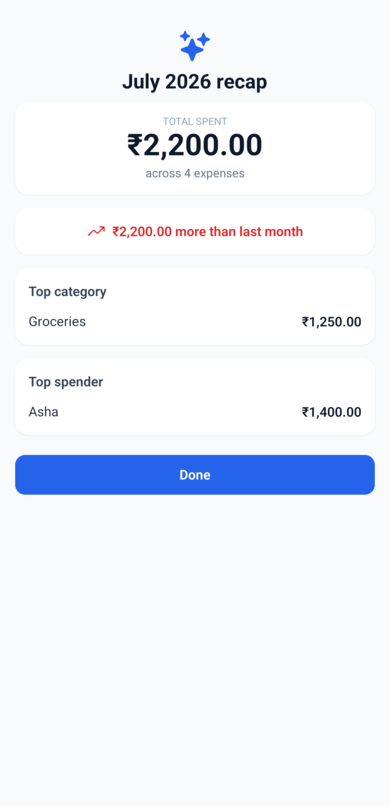
The sparkles icon opens a recap of the selected month: the total spent and how many expenses, whether it was more or less than the month before, and the top category and top spender. It's the same recap WeSpend shows automatically at the start of each new month (see The home screen), available here for any month you like.