Logging expenses
There are four ways to get a spend into WeSpend. All of them end up on the same add-expense screen - the only difference is how much gets pre-filled for you.
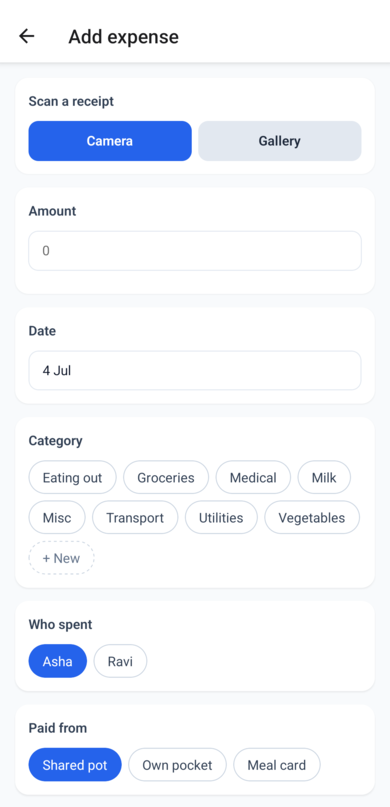
The form, field by field
- Amount - what was spent, in rupees.
- Date - defaults to today; tap it to back-date an expense you forgot to log.
- Category - pick one chip. Categories are shared by the household and editable in Settings.
- Who spent - which member made the purchase. This drives settlement, so pick the person who actually paid, not who the purchase was for.
- Paid from - Shared pot if it was paid with the household money the finance manager holds, Own pocket if the member paid with their personal money and should be paid back at settlement.
- Note - optional, e.g. the shop name.
1. Manual entry
Tap the + button on the home screen, fill the form, save. Works everywhere.
2. Scan a receipt
On the add-expense screen, tap Camera (snap the bill) or Gallery (pick a photo). The total is read off the receipt on your phone - nothing is uploaded anywhere - and the amount is pre-filled for you to check and save.
3. Share a payment from another app
Just paid with GPay or PhonePe? Share the payment confirmation and choose WeSpend in the share sheet. Both shared text and shared receipt images (screenshots) work - an image is read on your phone the same way receipt scanning is. Forwarding a bank SMS via the share sheet works the same way.
Shared and SMS-detected payments arrive with everything pre-filled: the amount, a note from the payment text, today's date, Shared pot, the finance manager as the spender, and a best-guess category from the merchant (Zepto - Groceries, Swiggy - Eating out, Uber - Transport, and so on). Glance over the fields, adjust if needed, and save.
4. Automatic SMS detection (Android)
Turn on Settings -> Reminders & auto-detect -> Read bank/UPI SMS. When a debit SMS arrives from your bank, WeSpend notices and shows a notification like "Rs 320 at DMART - tap to add". Tap it, confirm the category, save. Off by default, and entirely on your phone - messages never leave the device.
One limitation: live detection only works while the app is running. If a payment SMS arrived while the app was closed, use Scan today's SMS on that same Reminders screen - it checks today's messages, skips amounts already logged, and raises the same tap-to-add notification for anything missed.
Fixing mistakes
Tap any expense on the home or history screen to open it. From there you can change any field (including the date) or delete it entirely. Changes sync to everyone in the household immediately.
Household notifications
When a member adds, changes, or deletes an expense - or settles a week - everyone else's phone gets a notification ("Asha added ₹287 - Groceries"), so nobody has to open the app to know what moved. The phone asks for notification permission on first launch; without it these stay silent.